
Gebruikershulpmiddelen
Dit is een oude revisie van het document!
Inhoud
Installatie van Davical op Debian8
Begin met een Clone van de Debian8 minimal VM.
Apache webserver
installeer apache door:
apt-get install apache2
harden de httpd install door de volgende entries te wijzigen in: /etc/apache2/conf-available/security.conf
TraceEnable off

ServerSignature Off

ServerTokens Prod
SSL
apt-get install openssl
Instaleer de sslmodule in apache:
a2enmod ssl


 systemctl restart apache2.service
Om het dataverkeer te beveiligen gebruiken we SSL. Als eerste moeten we een certificaat aanmaken. We maken een “self-signed-certificate” omdat een geverifieerd certificaat te duur is voor nu.
Maak de directory aan waar het certificaat wordt opgeslagen:
mkdir /etc/apache2/ssl
Bij het aanmaken van een nieuw certificaat moeten we specificeren hoe lang deze geldig blijft.
openssl req -x509 -nodes -days 1000 -newkey rsa:2048 -keyout /etc/apache2/ssl/apache.key -out /etc/apache2/ssl/apache.crt
Met dit commando wordt zowel het certificaat als de server key aangemaakt.
Het programma vraagt je om enkele gegevens, waarvan de belangrijste de “Common Name” is. Vul hier je domeinnaam in:
Generating a 2048 bit RSA private key
.......................................................+++
......+++
writing new private key to '/etc/apache2/ssl/apache.key'
-----
You are about to be asked to enter information that will be incorporated
into your certificate request.
What you are about to enter is what is called a Distinguished Name or a DN.
There are quite a few fields but you can leave some blank
For some fields there will be a default value,
If you enter '.', the field will be left blank.
-----
Country Name (2 letter code) [AU]:NL
State or Province Name (full name) [Some-State]:Zuid Holland
Locality Name (eg, city) []:Den Haag
Organization Name (eg, company) [Internet Widgits Pty Ltd]:Boerema CI&ND
Organizational Unit Name (eg, section) []:IT Dept.
Common Name (e.g. server FQDN or YOUR name) []:calendar.auriel.nl
Email Address []:support@auriel.nl
chmod 600 /etc/apache2/ssl/*
Nu zou de server moeten draaien, controleer dit met een browser.
Postgresql
apt-get install postgresql
DaviCal installatie
installeer davical door:
apt-get install davical
leg een symlink in de apache document root:
cd /var/www/


ln -s /usr/share/davical/htdocs davical
Apache Vhost configuratie
Maak een vhost configuratie file aan:
vi /etc/apache2/sites-available/calendar.conf
en zet hierin:
<VirtualHost *:443>
    ServerName calendar.auriel.nl
    DocumentRoot /var/www/davical
    ServerAlias calendar
    Alias /images/ /var/www/davical/images/
    <Directory /var/www/davical/>
       AllowOverride None
       Order allow,deny
       Allow from all
    </Directory>

    php_value include_path /usr/share/awl/inc
    php_value magic_quotes_gpc 0
    php_value register_globals 0
    php_value error_reporting "E_ALL & ~E_NOTICE"
    php_value default_charset "utf-8"
    ErrorLog /var/log/apache2/calendar.auriel.nl-error_log

    SSLEngine on
    SSLCertificateFile /etc/apache2/ssl/apache.crt
    SSLCertificateKeyFile /etc/apache2/ssl/apache.key
    SetEnvIf User-Agent ".*MSIE.*" nokeepalive ssl-unclean-shutdown
</VirtualHost>
Zet vervolgens een link in de sites-enabled:
ln -s /etc/apache2/sites-available/calendar.conf /etc/apache2/sites-enabled/calendar.conf
zorg dat de DNS (router) de hostname kent, door in de hosts op te nemen:
192.168.1.202 calendar.auriel.nl
en herstart apache:
systemctl restart apache2.service
Davical database maken
zorg eerst dat de davical web en dba gebruiker binnen postgresql bekend is en rechten heeft:
vi /etc/postgresql/9.4/main/pg_hba.conf
en zet hierin:
# davical
local   davical         davical_app                             trust
local   davical         davical_dba                             trust
host    davical         davical_app    127.0.0.1/32             trust
In het geval het een compleet nieuwe installatie betreft en er dus geen eerdere data wordt geïmporteerd wordt de database gemaakt door een script wat bij davical is meegeleverd. Log eerst in als gebruiker postgres. om één of andere reden is het nodig om eerst een andere database aan te maken:
su - postgres


createdb mydb
voor versie 1.1.1 van davical moet je eerst het script fixen:
cd /usr/share/davical/dba


sed -i “s/'PlPgSQL'/'plpgsql'/” ./*sql ./patches/*sql


sed -i “s/'SQL'/'sql'/” ./*sql ./patches/*sql
maak vervolgens de davical database aan.
/usr/share/davical/dba/create-database.sh
Supported locales updated.
Updated view: dav_principal.sql applied.
CalDAV functions updated.
RRULE functions updated.
Database permissions updated.
NOTE
====
*  You will need to edit the PostgreSQL pg_hba.conf to allow the
   'davical_dba' database user access to the 'davical' database.

*  You will need to edit the PostgreSQL pg_hba.conf to allow the
   'davical_app' database user access to the 'davical' database.

*  The password for the 'admin' user has been set to 'Pa55w0rD'

Thanks for trying DAViCal!  Check in /usr/share/doc/davical/examples/ for
some configuration examples.  For help, visit #davical on irc.oftc.net.
schrijf het password op! Dit is het password waarmee je inlogt op de webinterface.
log uit als postgres exit
PHP
er mist bij de installatie nog één php module die wel gewenst is en de phpmodule voor apache, installeer die ook:
apt-get install php5-curl


apt-get install libapache2-mod-php5
Pas de standaard install van PHP iets aan voor de bijde files: /etc/php5/cli/php.ini en /etc/php5/apache2/php.ini voeg toe:
date.timezone = Europe/Amsterdam

;Harden de PHP install
expose_php = Off
cgi.fix_pathinfo = 0
max_input_vars = 10000
systemctl restart apache2.service
PHP configuratie file voor DAViCal
vi /etc/davical/calendar.auriel.nl-conf.php
en zet hier in:
<?php
//  $c->dbg['caldav'] = 1; // Enable debug of common caldav functions
//  $c->collections_always_exist = true;
//  $c->enable_row_linking = true;
//  $c->dbg['get'] = 1; // Enable debug of GET request processing
//  $c->dbg['post']= 1;
//  $c->dbg['querystring'] =1;
//  $c->dbg['request'] = 1;
//  $c->dbg['response'] = 1;

  $c->domain_name = 'calendar.auriel.nl';
  $c->sysabbr     = 'davical';
  $c->admin_email = 'support@auriel.nl';
  $c->pg_connect[] = 'dbname=davical port=5432 user=davical_app';
  $c->system_name = 'Onze Calender server';
  $c->default_locale = 'nl_NL';
  $c->pg_connect[] = 'dbname=davical port=5432 user=davical_app';
uitnodigings e-mail met Lightning/Thunderbird
Om onduidelijke redenen bestaat er een probleem in de samenwerking tussen lightning en DAViCal. Hierdoor verzend Thinderbird in sommige gevallen geen uitnodigings email.
Om dit te verhelpen voegen we aan de conf.php file de volgende regel toe te voegen:
$c->enable_auto_schedule = false;
Configuratie en gebruik
de configuratie van gebruikers etcetera wordt in de webinterface gedaan.
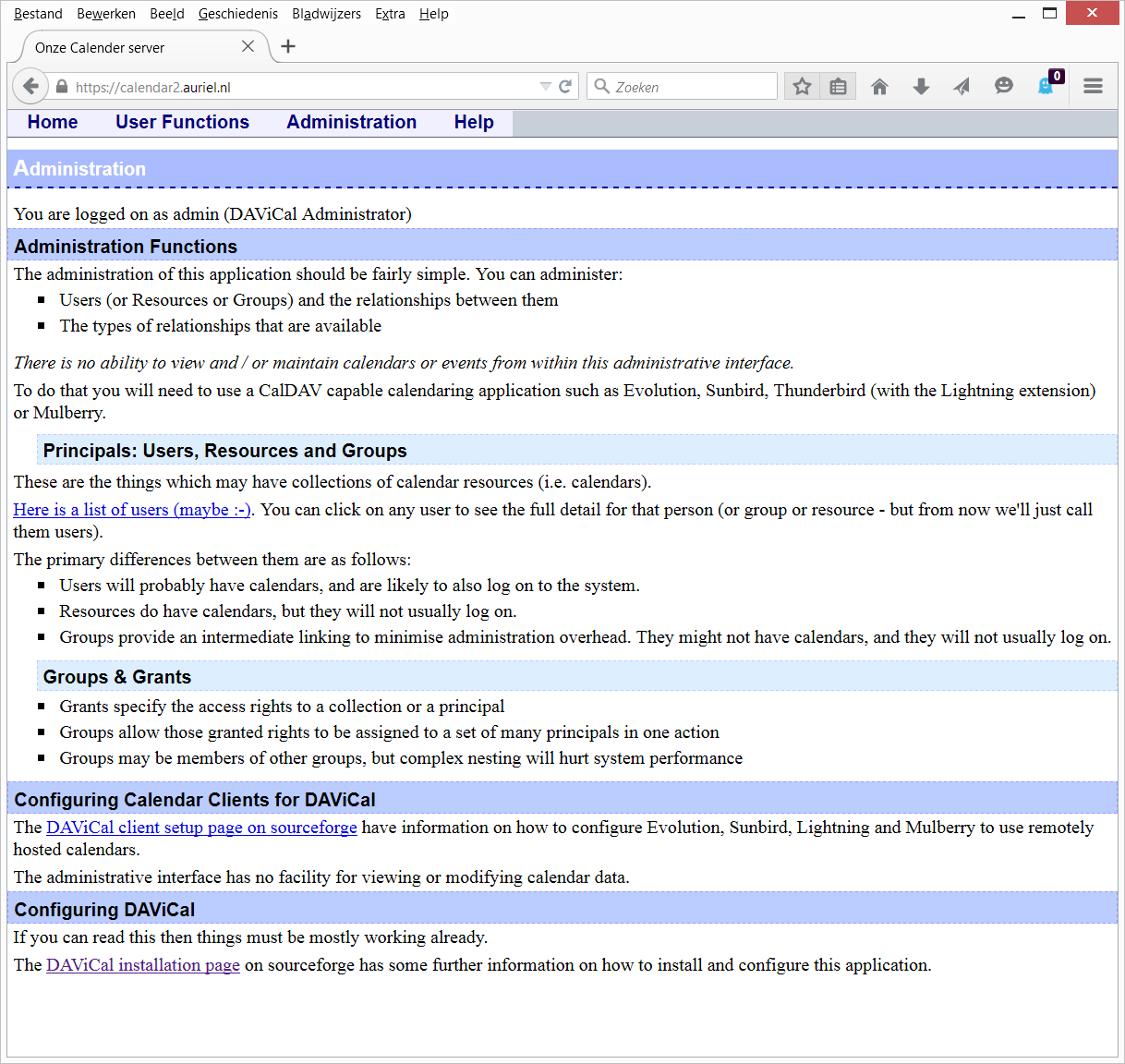
Ga naar de url, vergeet niet https ipv http: https://calendar.auriel.nl/ en log in op de pagina als admin met het password van hierboven.
Paginahulpmiddelen


